Extend your Mac to the iPhone next to it.
Your iPhone becomes another display for your Mac. Just drag Mac windows over to it. To pair, scan the QR code shown on your Mac with your iPhone once, on the same Wi-Fi.
The iPhone app is currently in testing on TestFlight. We’ll announce it on this page when it’s available to everyone. You can install the Mac app now.
-
No account. Free.
No sign-up, and no collection of usage data.
-
Video stays off the internet
It’s encrypted and sent only within your own network.
-
Pair once with a QR code
Just scan the QR code on your Mac with your iPhone. After that, open the app and it connects.
What it looks like
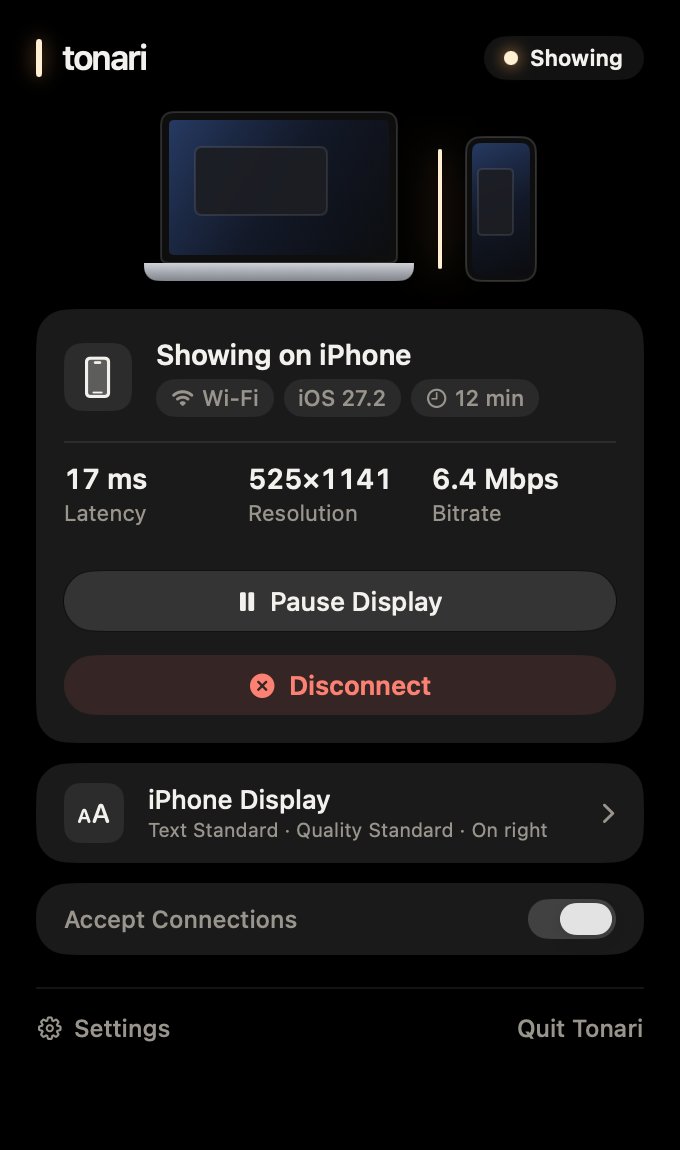
Your iPhone shows your Mac’s screen, and your Mac’s menu bar shows the connected iPhone. Here are a few ways to use it.
- Keep chat and notifications on your iPhone, and your Mac screen just for your documents.
- Put your calendar or a timeline on the tall iPhone screen.
- Meeting notes on your iPhone, reference materials on your Mac.

Getting started
You only pair once. After that, opening Tonari on your iPhone connects it to your last Mac automatically. Read the full guide
-
Install on your Mac
Open the downloaded file and drag Tonari to Applications. When you open it, allow Screen Recording and the Local Network prompt.
-
Install on your iPhone
Install Tonari on your iPhone. The iPhone app is currently in testing on TestFlight, and its public release is in preparation.
-
Scan the QR code
On the same Wi-Fi as your Mac, use Tonari on your iPhone to scan the QR code that Tonari shows in your Mac’s menu bar.
-
You’re connected
The screen next to your Mac appears on your iPhone. Next time, just open the app to connect.
Features
As a display
-
Three text sizes
Larger, Standard, or More Space. Your Mac’s resolution switches to suit the iPhone’s screen. Change it from either your Mac or your iPhone.
-
Portrait or landscape
The shape of the Mac display follows the way you hold your iPhone. You can also lock the rotation.
-
Choose which side
Choose from the menu whether your iPhone sits to the left or the right of your Mac.
-
iPhone Duo, too
Support is in preparation. When partly folded, it’s designed to show the picture on the top half in laptop posture or the left half in book posture, with a setting to use the whole screen. (Checked in the Simulator. We’ll release a version with this support after testing it on the real device once it’s out.)
Connecting
-
Just open it to connect
When your last Mac is found, your iPhone connects automatically after 2 seconds. You can cancel it.
-
Disconnect from either side
When you disconnect from your Mac, the iPhone doesn’t reconnect on its own. The display is removed right away, and windows move back to your Mac.
-
Choose the quality
Data Saver, Standard, or High. Choose Data Saver to use less data. The approximate data rates are 8, 20, and 35 Mbps.
Peace of mind
-
Encrypted, and only to your paired iPhone
Only an iPhone that has scanned your Mac’s QR code can connect. Video and controls are encrypted and sent only within the same network. They never go over the internet. No account, and no collection of usage data. Privacy
Requirements
| Mac | macOS 26 or later. The app supports both Apple silicon and Intel (tested only on Apple silicon Macs). |
|---|---|
| iPhone | iOS 26 or later. The iPhone app is currently in testing on TestFlight, and its public release is in preparation (we’re not accepting invitation requests yet). |
| iPad | Not supported. To use an iPad as another display for your Mac, you can use Sidecar in macOS. Tonari is another screen made for iPhone. |
| Connection | Connect your Mac and iPhone to the same Wi-Fi, and scan your Mac’s QR code the first time. Connecting over Personal Hotspot or with a cable is still being tested. |
| Price | Free |
Download for Mac
The app is notarized by Apple. When a new version is out, the app lets you know.
Go to the download page